
Your WordPress database is the engine behind everything. Every post you publish, every comment a reader leaves, every setting you configure — it all lives inside one MySQL database quietly running behind the scenes. When that database is healthy, your site flies. When it’s neglected, everything slows down, breaks, or worse — disappears entirely.
Yet most WordPress users never touch their database. They install plugins, upload images, tweak themes — but ignore the single most critical piece of their entire website infrastructure.
This guide changes that. Whether you’re setting up the best database WordPress configuration from scratch, planning to migrate database WordPress to a new host, or looking for proven WordPress database optimization techniques — every step is covered below in plain language anyone can follow.
Why Your WordPress Database Deserves More Attention
Think of your database like a filing cabinet. When you first set up WordPress, everything is neatly organized — a few tables, minimal data, lightning-fast queries. But over months and years, that cabinet fills up with clutter:
- Post revisions that pile up endlessly
- Orphaned metadata from deleted plugins
- Spam comments that were trashed but never purged
- Transient options that expired but still sit in the database
- Autoloaded data from plugins you uninstalled long ago
The result? Slower page loads, sluggish admin panels, longer backup times, and eventually — a site that frustrates both you and your visitors. Cleaning and optimizing your database isn’t optional maintenance. It’s essential care.
Step 1: Choose the Best Database Configuration for WordPress
Before optimizing anything, make sure your foundation is solid. The best database WordPress setup starts with choosing the right database engine and server configuration.
MySQL vs MariaDB — Which Should You Use?
WordPress officially supports both MySQL and MariaDB. Here’s the practical difference:
| Feature | MySQL 8.0+ | MariaDB 10.6+ |
|---|---|---|
| Speed | Excellent | Slightly faster for read-heavy loads |
| Compatibility | Full WordPress support | Full WordPress support |
| Community | Oracle-maintained | Open-source community driven |
| Default on hosts | Most shared hosting | Many VPS and cloud providers |
| Recommendation | Great for most users | Preferred for performance-focused setups |
Bottom line: Both work perfectly. If your hosting provider offers MariaDB 10.6 or newer, choose that. Otherwise, MySQL 8.0+ is excellent. Don’t overthink this step — either choice gives you a strong foundation.
Essential wp-config.php Database Settings
Open your wp-config.php file and verify these settings are correctly configured:
// Database charset - use utf8mb4 for full Unicode support
define('DB_CHARSET', 'utf8mb4');

// Database collation - leave empty to use default
define('DB_COLLATE', '');

// Custom database table prefix for security
$table_prefix = 'wp_yourprefix_';
Two quick wins here:
- Always use
utf8mb4— it supports emojis, special characters, and international languages without breaking. - Change your table prefix from the default
wp_to something unique. This adds a simple but effective layer of security against SQL injection attacks targeting default WordPress table names.

Step 2: Optimize Your Existing WordPress Database
Already running a WordPress site? This section is where you’ll see the biggest immediate performance gains. WordPress database optimization doesn’t require advanced technical skills — just the right tools and a systematic approach.
Method A: Using WP-Optimize Plugin (Recommended for Most Users)
- Install and activate the WP-Optimize plugin from your WordPress dashboard
- Navigate to WP-Optimize → Database
- Review the cleanup options — you’ll see categories like revisions, drafts, spam comments, transients, and orphaned data
- Check the boxes for items you want to clean
- Click “Run all selected optimizations”
- Enable the scheduled cleanup feature to automate this weekly
Pro tip: Always create a full backup before running your first optimization. Once you’ve confirmed everything works, let the scheduled cleanups handle it automatically going forward.
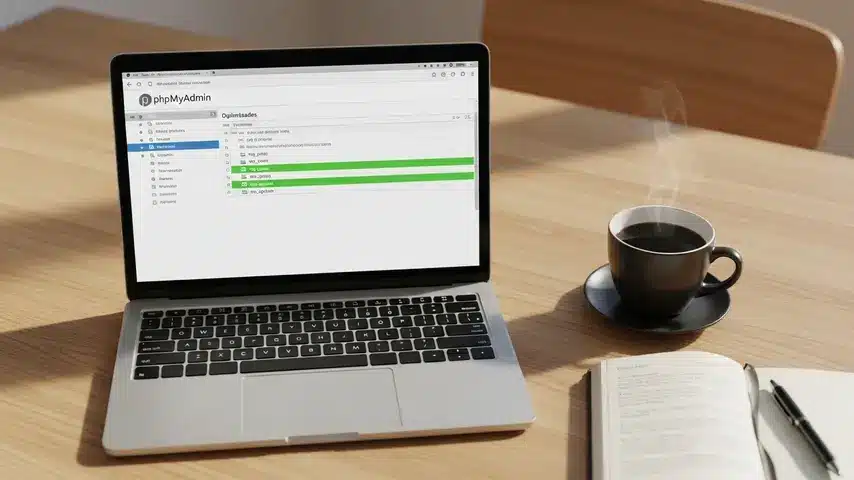
Method B: Manual Optimization via phpMyAdmin
For users comfortable with database tools:
- Log into phpMyAdmin through your hosting control panel
- Select your WordPress database from the left sidebar
- Click “Check All” at the bottom of the table list
- From the dropdown menu, select “Optimize table”
- Wait for the process to complete — you’ll see a results summary
This reclaims wasted space and reorganizes table structures for faster query performance. On a site with years of accumulated data, this single action can reduce database size by 20-40%.
Limit Post Revisions to Prevent Future Bloat
Add this line to your wp-config.php to keep revisions under control:
// Limit post revisions to 5 per post
define('WP_POST_REVISIONS', 5);
WordPress stores unlimited revisions by default. On a site with 200 posts edited frequently, that can mean thousands of unnecessary database rows. Limiting revisions to 5 strikes the perfect balance between safety and performance.
Step 3: Migrate Database WordPress to a New Host Safely
Switching hosting providers? Redesigning your site on a staging server? You’ll need to migrate database WordPress without losing data or breaking your site. Here’s exactly how to do it.

Method A: Using Duplicator Plugin (Easiest Approach)
- Install Duplicator on your current WordPress site
- Go to Duplicator → Packages → Create New
- Let the plugin scan your site and build a package
- Download both the installer.php file and the archive.zip
- Upload both files to your new hosting server’s root directory via FTP
- Visit
yournewdomain.com/installer.phpin your browser - Enter your new database credentials when prompted
- Follow the guided steps — Duplicator handles URL replacement, table prefix updates, and serialized data conversion automatically
- Log into your migrated site and verify everything works
Method B: Manual Migration via phpMyAdmin
If you prefer full control over the process:
- Open phpMyAdmin on your current host
- Select your WordPress database
- Click Export → Quick → SQL format → Go
- Save the
.sqlfile to your computer - Open phpMyAdmin on your new host
- Create a new empty database
- Select the new database and click Import
- Upload your
.sqlfile and click Go - Update
wp-config.phpon the new server with the correct database name, username, and password - Run a search-and-replace on the database to update old URLs to new ones (use the Better Search Replace plugin or WP-CLI)
Critical reminder: Always update the siteurl and home values in the wp_options table to match your new domain. Skipping this step is the most common reason migrated sites show a white screen.
Step 4: Secure Your WordPress Database
Optimization and migration mean nothing if your database gets compromised. Implement these security layers:
- Use strong database credentials — a unique username (never “root”) and a password with 20+ characters mixing letters, numbers, and symbols
- Change the default table prefix — as mentioned in Step 1, this reduces exposure to automated SQL injection scripts
- Disable database error display — add
define('WP_DEBUG', false);on production sites to prevent exposing table structures in error messages - Schedule automated backups — use UpdraftPlus or BlogVault to back up your database daily to a remote location like Google Drive or Amazon S3
- Restrict phpMyAdmin access — limit access by IP address through your hosting control panel or
.htaccessfile
While you’re securing your site’s backend, don’t neglect the frontend details that affect both user experience and SEO. Small things like properly configured featured images play a bigger role than most people realize. Here’s a helpful tutorial on how to set thumbnail images in WordPress blog posts that complements your optimization efforts.
Step 5: Monitor Database Health Ongoing
Optimization isn’t a one-time task. Set up these habits to keep your database running at peak performance long-term:
- Weekly: Run automated cleanup via WP-Optimize scheduled task
- Monthly: Check database size in phpMyAdmin — if it’s growing faster than your content output, investigate bloated tables
- Quarterly: Review autoloaded data in
wp_optionstable — large autoload values slow every single page load - After every plugin uninstall: Check for orphaned tables left behind by removed plugins — use Advanced Database Cleaner to identify them
Wrapping Up
Your WordPress database deserves the same attention you give to your content, design, and marketing. The best database WordPress setup isn’t complicated — it’s intentional. Choose the right engine, configure it properly from day one, optimize regularly, migrate carefully when needed, and always keep security front of mind.
Follow the steps in this guide, and you’ll have a database that stays fast, clean, and reliable — no matter how much your site grows. Start with Step 2 if your site is already running. Start with Step 1 if you’re building fresh. Either way, your future self will thank you for taking action today.
Frequently Asked Questions
What is the best database for WordPress?
MySQL 8.0+ and MariaDB 10.6+ are both excellent choices for WordPress. MariaDB tends to perform slightly better on read-heavy websites, while MySQL offers broader default support across hosting providers. Both are fully compatible with WordPress and receive active security updates.
How do I optimize my WordPress database without a plugin?
Log into phpMyAdmin through your hosting panel, select your WordPress database, check all tables, and choose “Optimize table” from the dropdown menu. You can also manually delete post revisions, spam comments, and expired transients using SQL queries. Always back up your database before making manual changes.
Is it safe to migrate a WordPress database manually?
Yes, migrating your WordPress database manually via phpMyAdmin is safe when done correctly. Export your database as a SQL file from the old host, import it on the new host, update wp-config.php with new credentials, and run a search-and-replace to update URLs. The key is to back up everything first and verify the migration thoroughly before going live.
How often should I clean my WordPress database?
Weekly automated cleanups work well for most sites. Use a plugin like WP-Optimize to schedule automatic removal of post revisions, spam comments, trashed items, and expired transients. For high-traffic sites or WooCommerce stores with heavy database activity, consider running optimization twice per week.
Why is my WordPress database so large?
Common causes include unlimited post revisions, accumulated spam comments, orphaned metadata from uninstalled plugins, excessive transient data, and large autoloaded option values. Running a database cleanup and limiting revisions in wp-config.php typically reduces database size significantly and improves overall site performance.