

When it comes to managing a blog, website, or web application, security should never be an afterthought. If you are running your website on a VPS (Virtual Private Server) or a dedicated Linux machine, relying on a simple password for server access is no longer enough. Cybercriminals constantly use automated bots to launch brute-force attacks against servers worldwide.
The most effective way to secure your server is by replacing your standard password with cryptographic SSH Keys. And if you are using a Windows computer, the industry-standard tool to manage these connections is PuTTY.
In this step-by-step DIY guide, we will walk you through the entire process—from completing a secure putty download to generating your first set of SSH keys and locking down your server.
Why Should You Use SSH Keys Instead of Passwords?
Before we dive into the technical steps, it is important to understand why this matters for your blog’s security.
- Uncrackable Complexity: A password like
P@ssw0rd123!can be guessed by a computer. An SSH key is a complex mathematical algorithm (usually 2048 or 4096 bits long) that would take modern computers millions of years to crack. - No More Brute Force: Once SSH keys are set up, you can configure your server to completely reject password logins. Even if a hacker knows your username, they cannot even attempt to log in without your physical private key file.
- Convenience: You can log in seamlessly without typing a long, complex password every single time.
Step 1: The Official PuTTY Download
The very first step is acquiring the right software. Because PuTTY is an open-source tool, there are many third-party websites offering it. However, for maximum security, you must ensure your putty download comes from a trusted, official source.
Never download terminal or SSH client software from unverified third-party software directories. Always use the official release provided by the original developer, Simon Tatham.
- Navigate to the official PuTTY release page.
- Look for the “Package files” section.
- Choose the MSI (Windows Installer) that matches your system architecture (usually 64-bit x86).
- Run the installer and follow the standard Windows setup prompts.
Once installed, you won’t just get the PuTTY terminal. The package includes several vital companion tools, most notably PuTTYgen (the key generator), which we will use in the next step.

Step 2: Generating Your SSH Keys using PuTTYgen
SSH uses a “key pair” system. You will generate two keys: a Public Key (which acts like a padlock you put on your server) and a Private Key (the digital key that stays safely on your computer to open that padlock).
1. Open the Key Generator
Open your Windows Start menu, search for PuTTYgen, and open the application.
2. Configure the Parameters
At the bottom of the window, you will see “Type of key to generate”. The default is usually RSA. Leave it as RSA, but change the “Number of bits in a generated key” from 2048 to 4096. This provides a much higher level of encryption for your blog’s server.
3. Generate the Key (The Fun Part)
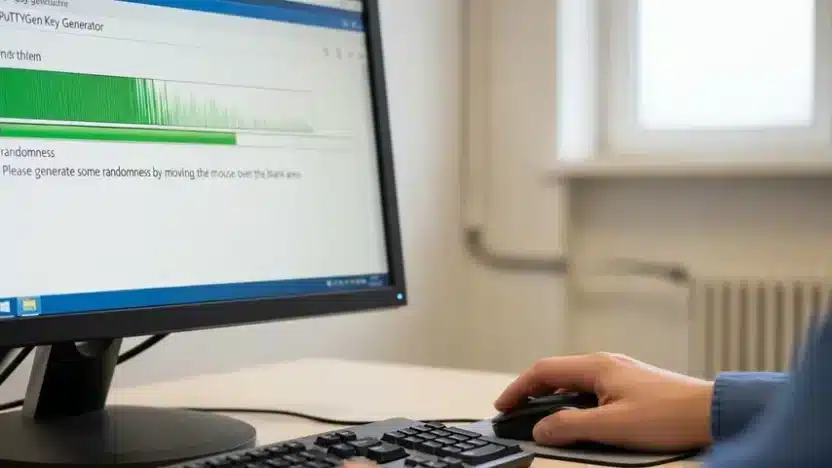
Click the “Generate” button. The program will ask you to move your mouse randomly over the blank area.
Why move the mouse? PuTTYgen uses the random movements of your cursor to create “entropy” (randomness), ensuring that your cryptographic key is completely unique and impossible to replicate.
4. Secure with a Passphrase
Once the key is generated, you will see a lot of random characters. Before saving, type a strong password into the Key passphrase and Confirm passphrase boxes. This ensures that even if someone steals your laptop, they cannot use your Private Key without knowing this passphrase.
5. Save Your Keys
- Click Save public key. Name it something recognizable like
my-blog-public-key.txt. - Click Save private key. Name it
my-blog-private-key.ppkand store it somewhere incredibly safe. Never share your .ppk file with anyone!
Step 3: Adding the Public Key to Your Server
Now that you have your keys, you need to place the Public Key onto your web server.
- Log into your server using your standard password via the normal PuTTY terminal for one last time.
- Go back to the PuTTYgen window. At the top, there is a box titled: “Public key for pasting into OpenSSH authorized_keys file”. Right-click and Copy the entire block of text starting with
ssh-rsa... - In your server terminal, type the following commands to create the necessary hidden folder and file:
mkdir -p ~/.ssh
chmod 700 ~/.ssh
nano ~/.ssh/authorized_keys
This will open a text editor in your terminal. Right-click inside the terminal window to Paste the public key you copied earlier. Save the file (Press CTRL + O, then Enter) and exit (Press CTRL + X).
Finally, set the correct permissions for the file so the server can read it securely:
chmod 600 ~/.ssh/authorized_keysStep 4: Connecting Securely via PuTTY
You are almost done! Now, let’s configure PuTTY to use your newly created private key.
- Open the main PuTTY application.
- In the “Host Name (or IP address)” field, enter your server’s IP address.
- In the left-hand category menu, expand Connection, then expand SSH, and click on Auth (Authentication).
- Depending on your PuTTY version, you may need to click on Credentials under the Auth menu.
- Look for the box that says “Private key file for authentication”. Click Browse and locate the
.ppkfile you saved in Step 2. - Go back to the very top of the left menu and click Session. Type a name in “Saved Sessions” (e.g., “My Secure Blog”) and click Save.
Now, click Open. The server will ask for your username (e.g., root or ubuntu), and instead of a server password, it will ask for your Key Passphrase. You are now securely logged in via SSH Keys!
The Alternative: Skip the Server Hassles, Focus on Content
Managing a Linux server, performing a secure putty download, configuring SSH keys, and constantly monitoring for security updates is a full-time job. For many digital creators and bloggers, this technical overhead distracts from what truly matters: creating great content and making money.
If reading through command-line tutorials makes your head spin, there is a smarter, much easier alternative.
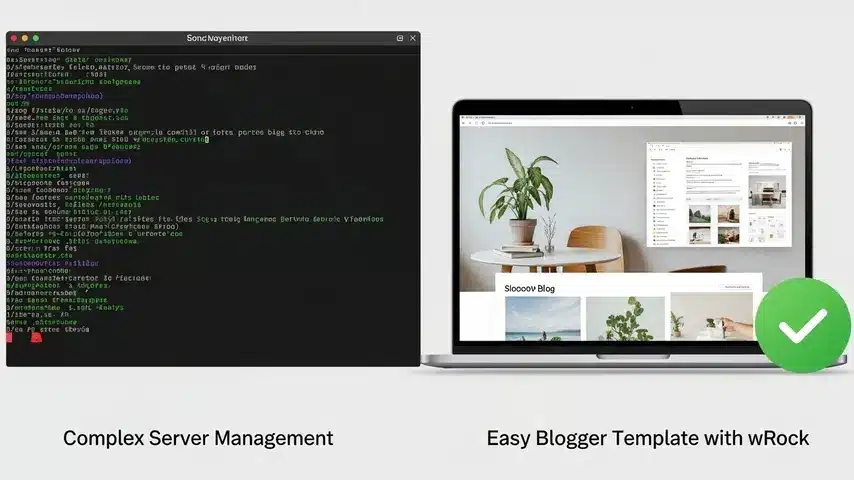
Migrate to Blogger with a Premium wRock Theme
Instead of managing an expensive, vulnerable VPS, many successful publishers choose Google’s free, ultra-secure Blogger (Blogspot) platform. Google handles the server security, SSL certificates, and brute-force protection automatically. You never have to touch an SSH key or terminal window.
However, default Blogger themes look amateurish. That is where wRock.org comes in.
By pairing the ironclad security of Google’s hosting with a Premium SEO-Optimized Blogger Template from wRock, you get the best of both worlds:
- Zero Maintenance: No server updates, no PuTTY configurations, no database crashes.
- Blazing Fast Speed: Our themes use clean, optimized XML coding that loads in milliseconds, pleasing both your readers and Google’s ranking algorithm.
- Built-In SEO: Schema markup, perfectly structured heading tags, and mobile-responsive designs are baked right into the template.
- AdSense Ready: Strategic ad placement zones designed to maximize your CTR (Click-Through Rate) and increase your passive income.
Server security is essential if you must run a private server. But if your goal is to publish content, rank high on Google, and generate income without the technical headaches, simplify your life.
Browse our collection of Premium Blogger Templates today and transform your secure blog into a professional, revenue-generating machine—no coding or SSH keys required!


