
You’ve been running your website on Joomla. Maybe for years. It’s worked fine — until it didn’t. Updates became complicated, finding developers got harder, plugin options felt limited, and every small change required more effort than it should.
So you’ve made the decision: it’s time to move to WordPress. Smart choice. But now you’re staring at a Joomla database full of posts, pages, categories, and years of content — and wondering how to get all of it into WordPress without losing everything or breaking your search rankings.
That’s exactly what this guide covers. I’ll walk you through how to import post Joomla to WordPress step by step, explain the tools that actually work, highlight the pitfalls that catch most people off guard, and show you how to protect your SEO throughout the entire migration.
Why Migrate From Joomla to WordPress?
Before diving into the how, let’s address the why — because understanding your reasons helps you plan the migration properly.
The most common reasons businesses and bloggers make the Joomla to WordPress switch:
- Easier content management — WordPress’s editor is genuinely intuitive. Joomla’s admin panel has a steeper learning curve that frustrates non-technical users.
- Larger plugin ecosystem — WordPress has 60,000+ plugins. Joomla’s extension directory is significantly smaller, which limits functionality without custom development.
- More theme options — Finding modern, well-supported WordPress themes is effortless. Joomla theme options are more limited and often more expensive.
- Bigger developer community — When you need help, finding WordPress developers is easier and typically more affordable than finding Joomla specialists.
- Better SEO tooling — Plugins like Yoast, Rank Math, and AIOSEO give WordPress users granular SEO control that Joomla struggles to match natively.
- Lower maintenance overhead — WordPress updates are simpler, and the ecosystem is more forgiving when things need fixing.
None of this means Joomla is bad. It’s powerful software. But for most content-driven websites, WordPress offers a better balance of simplicity, flexibility, and long-term sustainability. If you’re comparing content management platforms in general, understanding how platforms like Blogspot work can also help you appreciate where WordPress sits in the broader CMS landscape.
What Gets Migrated (And What Doesn’t)
Before you start, set realistic expectations. Here’s what a standard Joomla to WordPress migration transfers:
| Content Type | Transfers? | Notes |
|---|---|---|
| Articles / Posts | ✅ Yes | Content, titles, dates, authors |
| Pages | ✅ Yes | Static pages transfer as WordPress pages |
| Categories | ✅ Yes | Joomla categories become WordPress categories |
| Tags | ✅ Yes | If Joomla tags exist, they transfer |
| Images in posts | ⚠️ Partial | Inline images transfer but may need URL updating |
| Media library | ❌ Usually no | Requires manual transfer or dedicated media import |
| Menu structure | ❌ No | Needs manual recreation in WordPress |
| Modules / Widgets | ❌ No | Joomla modules don’t have WordPress equivalents |
| Extensions / Plugins | ❌ No | Find WordPress plugin replacements manually |
| URL structure | ❌ Changes | Requires 301 redirects to preserve SEO |
The critical takeaway: your content transfers. Your design, functionality, and URL structure don’t. Plan accordingly.
How to Import Posts From Joomla to WordPress — Step by Step
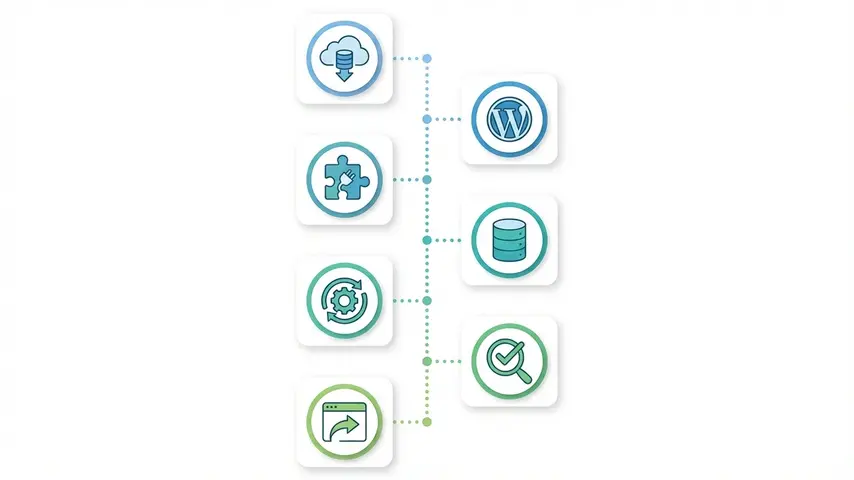
There are two proven methods. I’ll cover both — choose the one that matches your comfort level and site complexity.
Method 1: Using the FG Joomla to WordPress Plugin (Recommended)
This is the most reliable and widely used method for Joomla migration to WordPress. The FG Joomla to WordPress plugin connects directly to your Joomla database and imports content into your WordPress installation.
Step 1: Set Up Your WordPress Site
Install WordPress on your hosting. Choose a temporary domain or subdomain if your Joomla site is still live on the main domain. You don’t want to take your existing site offline during migration.
Step 2: Install the FG Joomla to WordPress Plugin
In your WordPress dashboard, go to Plugins → Add New → search for “FG Joomla to WordPress.” Install and activate it.
Step 3: Access the Import Tool
Navigate to Tools → Import → Joomla (FG). You’ll see a configuration page with several fields.
Step 4: Connect to Your Joomla Database
You’ll need your Joomla database credentials:
- Database hostname (usually localhost)
- Database name
- Database username
- Database password
- Joomla table prefix (usually
jos_orxxxxx_)
Find these in your Joomla installation’s configuration.php file. If you don’t have direct server access, your hosting provider can supply these details. For those comfortable with server-side file operations, understanding remote file upload via PHP can be helpful when transferring large database exports between servers.
Step 5: Configure Import Settings
The plugin offers several options:
- Import archived posts — Include or exclude archived Joomla content
- Import media — Attempt to transfer images from Joomla’s media folder
- Import meta keywords as tags — Converts Joomla meta keywords into WordPress tags
- Force image import — Useful when media URLs have changed
For most migrations, enable all options on the first pass. You can always clean up unwanted content afterward.
Step 6: Run the Import
Click “Start / Resume the import” and wait. Depending on how many articles your Joomla site has, this could take anywhere from a few minutes to over an hour for sites with thousands of posts.
The plugin shows real-time progress. Don’t close the browser tab or navigate away during import.
Step 7: Verify Your Content
Once complete, check your WordPress posts, pages, and categories. Open several random posts and verify that content, images, formatting, and author attribution transferred correctly.
Method 2: Manual XML Export/Import
If the plugin method doesn’t work for your setup — maybe your Joomla database is on a different server, or you’re migrating from an older Joomla version — you can export content manually.
- Use a Joomla extension like J2XML to export your articles as an XML file
- Convert the XML format to WordPress WXR format using a conversion tool or script
- Import the WXR file through WordPress → Tools → Import → WordPress
This method is more technical and prone to formatting issues. I recommend it only when Method 1 isn’t feasible.
The Most Critical Step: Setting Up 301 Redirects
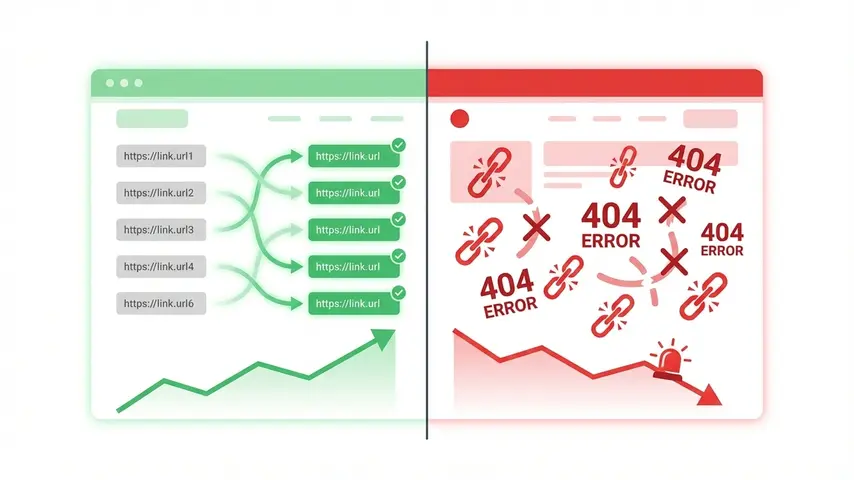
This is where most Joomla to WordPress migration projects go wrong. And the damage is severe.
Joomla and WordPress use completely different URL structures. A Joomla article might live at:
yoursite.com/index.php/category/article-title
The same content in WordPress would be:
yoursite.com/article-title/
Every old Joomla URL that Google has indexed is now a broken link. Every backlink from other websites pointing to your Joomla URLs leads to a 404 error. Without redirects, you lose all accumulated SEO authority overnight.
Here’s how to fix it:
- Install a redirect plugin — Redirection or Rank Math both handle this well
- Export all Joomla URLs — Use Screaming Frog or check Google Search Console for indexed pages
- Create 301 redirects — Map every old Joomla URL to its new WordPress equivalent
- Test thoroughly — Click through old URLs manually and verify they land on the correct new pages
This step is non-negotiable. Skip it and your organic traffic will crater within days.
Post-Migration Checklist
After importing your content and setting up redirects, run through this checklist before pointing your domain to the new WordPress site:
- All posts and pages are present and correctly formatted
- Images display properly (no broken image icons)
- Categories and tags are organized correctly
- 301 redirects are in place for all old Joomla URLs
- Permalink structure is set (Settings → Permalinks → Post name)
- SEO plugin installed and configured (Yoast or Rank Math)
- XML sitemap generated and submitted to Google Search Console
- Navigation menu recreated to match your site structure
- Contact forms, email subscriptions, and functional elements are working
- SSL certificate is active (HTTPS)
- Site speed tested on Google PageSpeed Insights
- Mobile responsiveness verified on actual devices
- Google Analytics and Search Console connected
- Old Joomla installation backed up completely before decommissioning
Common Mistakes That Wreck Joomla Migrations
I’ve seen these errors destroy months of SEO progress. Avoid all of them:
1. Not backing up before starting. Always create a complete backup of your Joomla database and files before touching anything. If the migration goes sideways, you need a rollback option.
2. Forgetting 301 redirects. I’ve said it twice already. I’ll say it again. This single step determines whether your migration preserves SEO or destroys it.
3. Going live too soon. Test everything on a staging domain first. Don’t switch your live domain to WordPress until every post, page, redirect, and function has been verified.
4. Ignoring image URLs. Even when content imports successfully, image paths often still reference the old Joomla media folder. Use the Better Search Replace plugin in WordPress to update all old image URLs to new WordPress media library paths in bulk.
5. Not resubmitting sitemap. After migration, generate a fresh XML sitemap in WordPress and submit it to Google Search Console. This tells Google to recrawl your site under the new structure.
6. Deleting the Joomla installation immediately. Keep your Joomla backup for at least 3–6 months after migration. You might discover missing content, need to reference old configurations, or find redirect gaps that require checking the original URL structure.
Frequently Asked Questions
Can I import all my Joomla posts to WordPress automatically?
Yes. The FG Joomla to WordPress plugin automates the import of articles, pages, categories, tags, and images by connecting directly to your Joomla database. For most sites, this single plugin handles the entire content transfer without requiring manual copy-paste of individual posts.
Will I lose my Google rankings after migrating from Joomla to WordPress?
Not if you implement 301 redirects correctly. Redirects tell Google that your content has permanently moved to new URLs, transferring the SEO authority from old Joomla pages to their WordPress equivalents. Without redirects, yes — you’ll lose rankings. With proper redirects, most sites recover fully within 2–4 weeks.
How long does a Joomla to WordPress migration take?
For a small to medium site with under 500 posts, the technical migration takes a few hours. Setting up redirects, testing, and verifying everything typically adds another day or two. Larger sites with thousands of posts and complex structures can take a full week of careful work. Don’t rush it.
Do my Joomla images transfer to WordPress?
Images embedded within post content usually transfer through the import plugin, but they may still reference old Joomla file paths. After migration, use the Better Search Replace plugin to update all image URLs to your new WordPress media structure. Standalone media files in Joomla’s media library typically need manual transfer via FTP.
Can I migrate Joomla to WordPress on a different hosting provider?
Yes. You’ll need remote access to your Joomla database credentials, which you can find in Joomla’s configuration.php file. The FG Joomla to WordPress plugin can connect to remote databases as long as your Joomla hosting allows external database connections. Alternatively, export your Joomla database as a SQL file and import it locally for the migration.
What happens to my Joomla extensions after migration?
Joomla extensions do not transfer to WordPress. You’ll need to find WordPress plugin equivalents for every Joomla extension you relied on. In most cases, WordPress has equal or better alternatives available — often free. Make a list of your critical Joomla extensions before migrating and identify WordPress replacements in advance.
Migrating from Joomla to WordPress feels overwhelming when you’re looking at it from the outside. But when you break it into steps — backup, install, connect, import, redirect, verify — each piece is manageable. The key is doing it methodically and not skipping the parts that protect your SEO.
Your content took months or years to create. A careful migration ensures none of that work goes to waste.