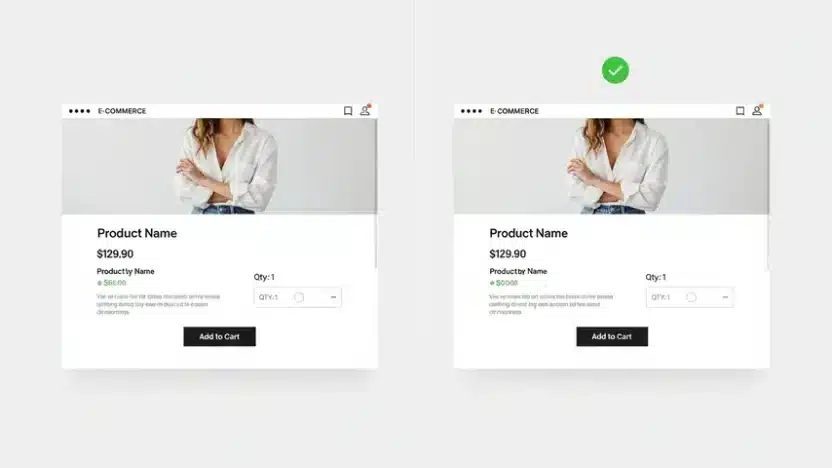
Running a WooCommerce store comes with endless customization possibilities. However, sometimes the default features work against your business model. One common frustration for store owners selling digital products, services, or one-of-a-kind art is the quantity selector.
If you are selling an eBook or a consulting session, does it make sense for a customer to buy the same item twice? Probably not. In these cases, the “Quantity” input field is not just redundant; it’s confusing.
If you have been searching for “how to hide quantity woocommerce” without bloating your site with heavy plugins, you have come to the right place. In this DIY guide, we will show you three methods to remove the quantity field from your product pages, ranging from a simple settings tweak to a professional code snippet.
Why Remove the Quantity Field?
Before we dive into the code, let’s look at why removing this small field can improve your User Experience (UX) and conversion rates:
- Digital Goods: Customers only need one copy of a downloadable file. Buying two is usually a mistake that leads to refund requests.
- Exclusive Items: If you sell unique handmade items where stock is always 1, a quantity selector is unnecessary.
- Services & Memberships: You typically subscribe to a membership once.
- Cleaner Design: Removing unnecessary buttons makes your “Add to Cart” area look cleaner and more focused.

Method 1: The “No-Code” Native Solution (Best for Single Products)
Many users don’t realize that WooCommerce has a built-in feature to hide quantity woocommerce fields. This is the safest method because it requires zero coding. It works by telling WooCommerce that a product can only be bought once per order.
Step-by-Step Instructions:
- Log in to your WordPress Dashboard.
- Go to Products and edit the product you want to change.
- Scroll down to the Product Data box.
- Click on the Inventory tab.
- Check the box labeled “Sold individually”.
- Update or Publish your product.
When you view the product page, the quantity input box will be gone. The “Add to Cart” button will simply add one item.
Pros: No risk of breaking your site.
Cons: You must do this manually for every single product.
Method 2: The “Global Fix” Using PHP Snippet (Recommended)
If you have hundreds of products and don’t want to edit them one by one, using a code snippet is the professional way to go. This method forces the “Sold Individually” rule on ALL products automatically.

Note: We recommend adding this code using a plugin like “Code Snippets” or pasting it into your child theme’s functions.php file. Do not edit the parent theme directly.
The Code:
/**
 * Snippet to remove quantity field from all product pages
 * Target: wrock.org/hide-quantity-input-field-from-product-page-woocommerce/
 */

add_filter( 'woocommerce_is_sold_individually', 'wrock_remove_all_quantity_fields', 10, 2 );

function wrock_remove_all_quantity_fields( $return, $product ) {
    // Enable "Sold Individually" for all products automatically
    return true;
}
How it works: This filter intercepts WooCommerce’s check for “is this sold individually?”. By returning true, we tell WooCommerce “Yes, everything is sold individually,” so it automatically hides the quantity box globally.
Method 3: The “Visual Hiding” Using CSS (Quickest Fix)
If you aren’t comfortable with PHP or if your specific theme overrides the method above, you can simply hide the box visually using CSS. The field is technically still there, but the user can’t see it.
Step-by-Step Instructions:
- Go to Appearance > Customize.
- Click on Additional CSS.
- Paste the following code:
/* Hide Quantity Input on Product Page */
.single-product .quantity,
.single-product .qty {
    display: none !important;
}

/* Optional: Make Add to Cart button full width */
.single-product button.single_add_to_cart_button {
    margin-left: 0 !important;
}
Warning: This method only hides the input. A savvy user could technically inspect the code and change the quantity, but for 99% of visitors, it works perfectly.
Method 4: Hiding Quantity for Specific Categories Only
What if you sell both T-Shirts (need quantity) and eBooks (don’t need quantity)? You can use a more advanced script to hide quantity woocommerce fields based on the product category.
Use this PHP snippet:
add_filter( 'woocommerce_is_sold_individually', 'wrock_hide_quantity_for_specific_categories', 10, 2 );

function wrock_hide_quantity_for_specific_categories( $return, $product ) {
    // List your category slugs here (comma separated)
    $categories = array( 'ebooks', 'digital-downloads', 'courses' );

    // Check if the product is in one of these categories
    if ( has_term( $categories, 'product_cat', $product->get_id() ) ) {
        return true; // Hide quantity
    }

    return $return; // Show default for others
}
Troubleshooting Common Issues
“I added the code but the quantity box is still there!”
This usually happens due to caching. Clear your browser cache and your caching plugin (like WP Rocket or LiteSpeed). If it still persists, your theme might be using a custom “Add to Cart” template. In that case, Method 3 (CSS) is your best bet.
“Can I still change quantity in the Cart page?”
The PHP Method 2 (Sold Individually) will also prevent changing quantity in the cart. If a user tries to add the item again, they will see a message: “You cannot add another quantity of this item to your cart.”
Frequently Asked Questions (FAQ)
How do I remove the quantity field in WooCommerce without plugins?
You can remove the quantity field without plugins by using the “Sold Individually” option in the Product Data settings (Inventory tab). Alternatively, you can add a simple PHP filter to your theme’s functions.php file to apply this globally.
Does hiding the quantity field affect the cart page?
Yes. If you use the “Sold Individually” method (Method 1 or 2 in this guide), the quantity selector will also be removed from the Cart page, ensuring users cannot increase the quantity before checkout.
Can I hide the quantity field for digital products only?
Absolutely. You can use a conditional PHP snippet (provided in Method 4 above) that checks if a product belongs to a “Digital” category and hides the quantity input only for those items, while keeping it for physical goods.
Is it better to use CSS or PHP to hide the quantity?
PHP is generally better because it modifies the actual logic of the site, preventing multiple purchases in the backend. CSS only hides the box visually; technically, the functionality remains. Use PHP for a robust solution and CSS for a quick visual fix.
We hope this guide helped you customize your store. By decluttering your product page, you create a smoother checkout experience for your customers. For more WooCommerce tips and premium optimized themes, check out the rest of wRock.org.