


They say a picture is worth a thousand words. In the world of digital publishing and SEO, a picture is worth much more: it’s worth clicks, engagement, and higher search rankings.
The Featured Image (often called a post thumbnail) is the “face” of your WordPress article. It is the first thing visitors see on your homepage, and it is the visual hook that appears when your link is shared on social media platforms like X (Twitter), LinkedIn, or Facebook.
However, as we move through 2026, the standard for web visuals has evolved. Simply uploading a stock photo is no longer enough. With the rise of Generative AI and Google’s strict Core Web Vitals metrics, your featured images must be original, lightweight, and strategically optimized.
In this comprehensive guide, we will walk you through the fundamental steps of setting a featured image in WordPress, and then dive deep into advanced strategies using AI to transform your blog’s visual identity.
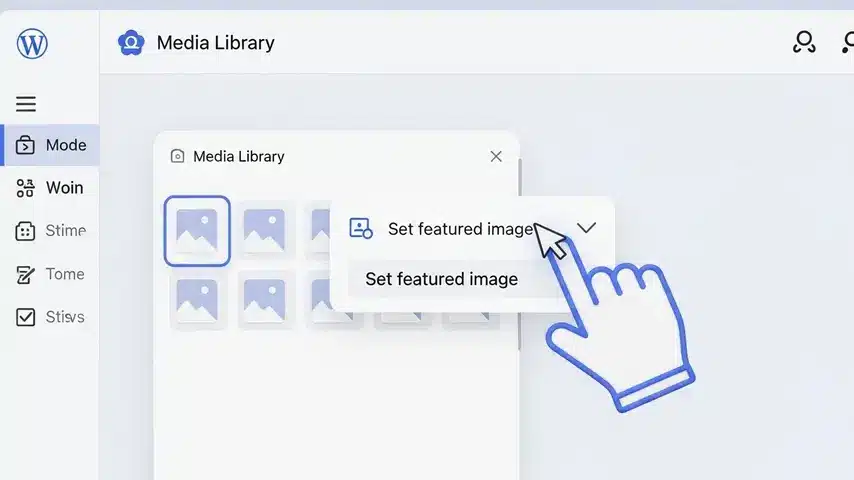
1. The Basics: How to Set Featured Image
For beginners or those transitioning from other platforms like Blogger or Wix, WordPress handles cover images differently. You don’t insert the image directly into the text body; you assign it to the post metadata.
Here is the standard workflow for the Gutenberg (Block) Editor:
Step-by-Step Guide
- Open the Editor: Navigate to your post or page.
- Access Settings: Look at the right-hand sidebar. Ensure the “Post” tab is selected (not the “Block” tab).
- Locate the Panel: Scroll down until you see the accordion menu labeled “Featured image”. Click to expand it.
- Select Image: Click the gray box area labeled “Set featured image”.
- Media Library: A pop-up window will appear. You can upload a new file from your computer or select an existing one.
- Confirm: Click the blue button in the bottom-right corner.
Note for Classic Editor Users: The process is identical, but the box is usually located in the bottom-right corner of your screen layout.
2. Why Featured Images Impact SEO & CTR
Many webmasters treat thumbnails as an afterthought. This is a mistake. Google’s algorithms have become increasingly visual. Here is why optimizing this image is non-negotiable:
- Google Discover Traffic: Google Discover relies heavily on high-quality visuals. A compelling, high-resolution image (at least 1200px wide) significantly increases your chances of being featured in users’ personalized feeds.
- Social Media CTR: When your link is shared on social media, the platform scrapes your Open Graph tags. If your featured image is boring or cropped incorrectly, users will scroll past it. A captivating image stops the scroll.
- Image Search Indexing: Properly optimized images bring in their own traffic via Google Images, which is often less competitive than standard web search.
3. The AI Revolution: Generating Unique Thumbnails

Gone are the days of relying on overused stock photos from free sites like Unsplash or Pexels. If thousands of websites use the same “man typing on laptop” image, Google recognizes it as duplicate content, diluting your site’s perceived value.
In 2026, the winning strategy is AI-Generated Originality.
A. Creating Concepts with Prompt Engineering
Tools like Midjourney, DALL-E 3, or Stable Diffusion allow you to create metaphors. Instead of a literal photo of a “server,” you can generate a “futuristic data fortress glowing in a cyberpunk city.”
“A minimalist 3D illustration of a WordPress logo floating in a digital cloud, surrounded by SEO data streams, soft lighting, pastel color palette, high resolution –ar 16:9”
B. The Power of Background Removal
Sometimes, less is more. A cluttered background can distract from the subject. Modern design trends favor clean, solid-color backgrounds with a sharp subject in the center.
Manually cutting out images in Photoshop takes time. You can now use AI to detect the subject and remove the background instantly.
We are currently developing advanced AI utilities to help you with this. Check out our AI Tools Suite for updates on our Background Remover.
4. Technical Optimization (Core Web Vitals)
A beautiful image is useless if it takes 5 seconds to load. Large images are the #1 killer of website speed. Here is the technical checklist for a perfect featured image:
1. The Correct Dimensions
Do not upload a 4000px wide image from your DSLR camera. It is overkill.
Standard Recommendation: 1200px by 675px (16:9 aspect ratio). This fits perfectly on Facebook, Twitter cards, and most desktop themes.
2. Next-Gen Formats (WebP & AVIF)
Stop using PNG for photos. PNG is for graphics with transparent backgrounds. For featured images, you should serve WebP format. WebP images are typically 25-35% smaller than JPEGs with no visible loss in quality.
3. Alt Text is for Accessibility & Robots
The “Alt Text” field is not a place to stuff keywords randomly. It describes the image to blind users (using screen readers) and search engines.
- Bad: “seo wordpress rank high”
- Good: “A graph showing increasing website traffic after SEO optimization.”
5. Troubleshooting Common Issues
Even pros run into problems. Here are quick fixes for the most common featured image headaches:
- My featured image appears twice on the post!
- This usually happens because your theme automatically displays the featured image, but you also inserted the image manually into the post content. Remove the manual image from the top of your post editor.
- Facebook is showing the wrong image.
- This is an “Open Graph” cache issue. You can force Facebook to scrape your site again using the Facebook Sharing Debugger tool. Also, ensure you have an SEO plugin (like RankMath or Yoast) installed to define the social image specifically.
- The image looks blurry.
- Check your WordPress media settings. Your theme might be pulling the “Medium” size version instead of the “Large” or “Full” version. Ensure your source image is at least 1200px wide.
Ready to Upgrade Your Visuals?
Setting a featured image is just step one. Using AI to generate, clean, and optimize that image is the future.
At wRock.org, we are committed to providing the tools you need to succeed in the AI-driven web. Explore our tutorials and stay tuned for our upcoming suite of webmaster tools.


