

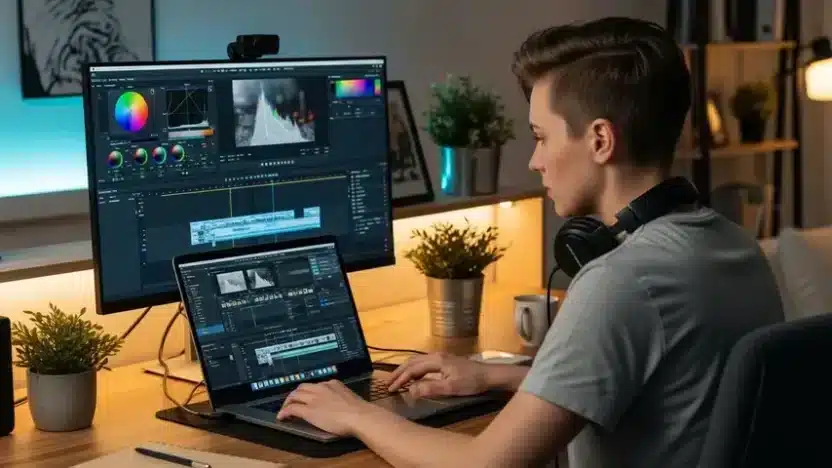
You don’t need to spend hundreds of dollars to edit videos like a professional. That used to be true only in theory — the free options were clunky, limited, and frustrating. But in 2026, the landscape has completely shifted. Several video editing programs free of charge now rival paid software that professionals have relied on for years.
I’ve personally tested over a dozen free editors this year across different projects — YouTube content, client work, short-form social videos, and even a short documentary. Some impressed me. Others wasted my time. This review covers the seven that actually delivered results, with honest pros, cons, and recommendations based on real usage.
If you’re looking for a broader breakdown of the best options available, our complete guide to the best free video editing programs covers additional picks and comparison details worth checking out.
What Makes a Free Video Editor Actually Worth Using?
Before diving into the reviews, let’s set expectations. Not every free video editing program deserves your time. Here’s what separates the genuinely useful tools from the ones that look great in screenshots but fall apart during a real edit session:
- No aggressive watermarks — If your exported video has a giant logo stamped across it, the software isn’t truly free. It’s a forced trial.
- Stable performance — Crashing mid-edit is the fastest way to lose trust in any tool. Stability matters more than flashy features.
- Export quality — Can you render in 1080p or 4K without paying? If the free tier limits you to 720p, that’s a dealbreaker for most creators.
- Reasonable learning curve — Professional-grade power is great, but only if you can actually learn the interface without a university degree.
- Active development — Software that hasn’t been updated in two years is a liability, not a solution.
With those criteria in mind, here are the seven that earned their spot.
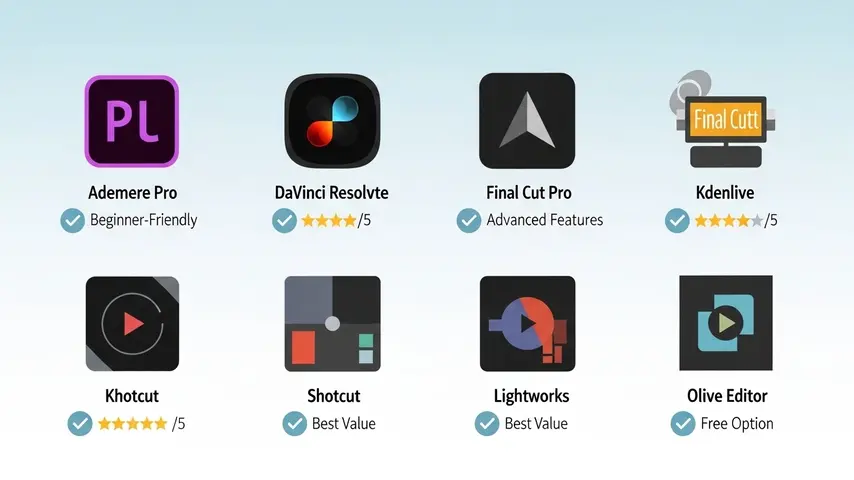
1. DaVinci Resolve — The Professional Standard That Costs Nothing
If someone asked me to recommend just one video editing software professional editors actually use — and it happens to be free — DaVinci Resolve is the answer every single time.
Blackmagic Design built this software for Hollywood colorists, and then made the full editing suite free. The paid Studio version exists, but the free tier includes everything most creators and professionals need: multi-track timeline editing, industry-leading color grading, Fairlight audio post-production, and even visual effects through Fusion.
✅ Pros
- Truly professional-grade color correction
- No watermarks, no export limitations
- 4K export in the free version
- Built-in audio editing suite
- Regular updates with meaningful features
❌ Cons
- Steep learning curve for beginners
- Demands capable hardware (GPU-heavy)
- Interface can feel overwhelming initially
Best for: Serious creators, freelancers, and anyone ready to invest time learning a tool they’ll never outgrow.
2. CapCut Desktop — The Social Media Powerhouse
CapCut exploded in popularity through TikTok, but the desktop version is a surprisingly capable editor for broader projects. It’s fast, intuitive, and packed with AI-powered features like auto-captions, background removal, and smart color correction.
✅ Pros
- Extremely beginner-friendly
- Built-in AI tools (captions, effects, upscaling)
- Massive template and music library
- 1080p export without watermarks
❌ Cons
- Limited multi-track capabilities
- Some premium features require Pro subscription
- Less control over advanced color grading
Best for: Content creators focused on YouTube Shorts, TikTok, Instagram Reels, and quick turnaround edits.
3. Shotcut — The Reliable Open-Source Workhorse
Shotcut has been quietly serving editors for years. It’s open-source, cross-platform, and completely free without any catch. No account creation, no watermarks, no hidden paywalls.
For anyone specifically looking for solid video editing software in Windows, Shotcut runs exceptionally well on Windows machines — even older hardware that would struggle with DaVinci Resolve.
✅ Pros
- 100% free, open-source, no account needed
- Wide format support (nearly every codec)
- Lightweight — runs on modest hardware
- 4K export supported
❌ Cons
- Interface feels dated compared to competitors
- No built-in stock media library
- Occasional stability issues on complex projects
Best for: Budget-conscious editors who value privacy, simplicity, and compatibility over visual polish.
4. Kdenlive — The Linux Favorite That Works Everywhere
Kdenlive started as a Linux project but now runs beautifully on Windows and macOS. It’s one of the most feature-rich open-source editors available, offering multi-track editing, keyframe animations, and a solid effects library.
✅ Pros
- Powerful multi-track timeline
- Excellent keyframe animation controls
- Active open-source community
- Cross-platform compatibility
❌ Cons
- Can be buggy on Windows occasionally
- Rendering speed slower than competitors
- Smaller tutorial ecosystem
Best for: Linux users and editors who want open-source freedom with mid-level professional features.
5. Microsoft Clipchamp — Built Right Into Windows
If you’re running Windows 11, you already have Clipchamp installed. Microsoft acquired this browser-based editor and integrated it directly into the operating system. For quick edits and simple projects, it’s surprisingly convenient.
As far as video editing software in Windows goes, Clipchamp wins on accessibility — zero downloads, zero setup, just open and start editing.
✅ Pros
- Pre-installed on Windows 11
- Clean, modern, beginner-friendly interface
- Built-in stock library and templates
- Text-to-speech and auto-captions
❌ Cons
- Free tier limited to 1080p export
- Advanced features locked behind Microsoft 365
- Not suitable for complex multi-track projects
Best for: Windows users who need quick, hassle-free editing without installing additional software.
6. OpenShot — Simple, Clean, and Genuinely Easy
OpenShot is the editor I recommend to people who have never touched video editing before. The interface is clean, the learning curve is gentle, and it handles basic to intermediate projects without overwhelming you with options.
✅ Pros
- Easiest interface among open-source editors
- Drag-and-drop simplicity
- Decent title and transition library
- Cross-platform support
❌ Cons
- Performance issues with larger files
- Limited effects compared to DaVinci or Kdenlive
- Crash-prone on resource-heavy timelines
Best for: Absolute beginners and casual editors who prioritize simplicity over advanced features.
7. HitFilm — Free VFX-Focused Editing
HitFilm combines video editing with visual effects compositing in a single free application. If your content involves motion graphics, green screen work, or cinematic effects, HitFilm offers capabilities that other free editors simply don’t match.
✅ Pros
- Built-in VFX and compositing tools
- Professional-quality green screen removal
- Active community and tutorial library
- No watermark on exports
❌ Cons
- Requires account creation
- Some effect packs are paid add-ons
- Hardware-demanding for VFX rendering
Best for: Aspiring filmmakers and creators who need VFX tools without a professional software budget.
Quick Comparison Table
| Software | Skill Level | Best Feature | Max Free Export | Platform |
|---|---|---|---|---|
| DaVinci Resolve | Intermediate-Advanced | Color grading | 4K | Win / Mac / Linux |
| CapCut Desktop | Beginner | AI auto-captions | 1080p | Win / Mac |
| Shotcut | Beginner-Intermediate | Format compatibility | 4K | Win / Mac / Linux |
| Kdenlive | Intermediate | Keyframe animation | 4K | Win / Mac / Linux |
| Clipchamp | Beginner | Zero-install convenience | 1080p | Windows |
| OpenShot | Beginner | Simplest interface | 4K | Win / Mac / Linux |
| HitFilm | Intermediate | Built-in VFX | 4K | Win / Mac |
Final Verdict — Which One Should You Pick?
Here’s my honest take after testing all of them extensively:
- Choose DaVinci Resolve if you’re serious about editing and willing to learn a professional tool you’ll use for years.
- Choose CapCut if you create social media content and want speed with AI assistance.
- Choose Shotcut or Clipchamp if you need a reliable, lightweight editor on Windows without any fuss.
- Choose HitFilm if visual effects are central to your creative vision.
The truth is, there’s never been a better time to edit video without spending a dime. These free video editing programs deliver results that would have cost thousands just a few years ago. The only real investment is your time learning the tool that fits your workflow.
Pick one. Start a project tonight. You’ll be surprised how far these tools can take you.
Frequently Asked Questions
What is the best video editing program free for beginners?
CapCut Desktop and OpenShot are the easiest options for beginners. CapCut offers AI-powered features that speed up the editing process, while OpenShot provides a clean drag-and-drop interface with minimal complexity. Both produce watermark-free exports at no cost.
Can free video editing software match professional paid tools?
DaVinci Resolve absolutely competes with paid video editing software professional editors use daily. Its color grading tools are considered industry-standard, and the free version includes features that rival Adobe Premiere Pro and Final Cut Pro for most editing workflows.
Which free video editing program works best on Windows?
For native Windows integration, Clipchamp is the most convenient since it’s pre-installed on Windows 11. However, for more powerful video editing software in Windows, DaVinci Resolve and Shotcut both run excellently on Windows machines and offer significantly more advanced capabilities.
Are free video editors safe to download?
The programs listed in this review are all safe and reputable. Always download directly from the official website of each software. Open-source options like Shotcut, Kdenlive, and OpenShot have publicly auditable code, which adds an extra layer of transparency and trust.
Do free video editing programs add watermarks?
All seven programs reviewed here export without watermarks on their free tiers. This is a critical distinction — many other “free” editors plaster logos on your final video unless you upgrade. Every option in this list gives you clean, professional exports at zero cost.


