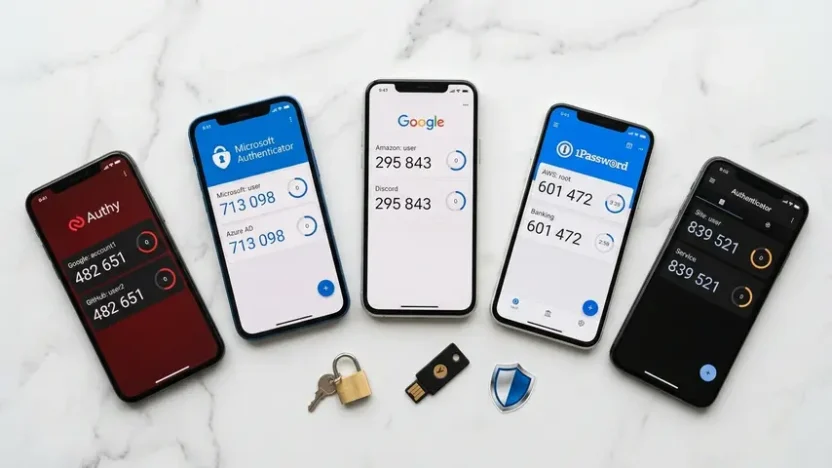
Your password just isn’t enough anymore. Hackers crack millions of accounts every year — not through sophisticated exploits, but through simple password reuse, phishing, and data breaches. Two-factor authentication stops these attacks cold. But only if you’re using the right app.
The best authenticator apps protect your email, banking, social media, and work accounts with time-based codes that change every 30 seconds. They work offline, sync across devices, and add a security layer that password-only authentication simply cannot match.
This guide compares the top six authenticator apps available in 2025 — examining features, security, pricing, and real-world usability to help you choose the best 2FA app for your needs.
What Makes an Authenticator App “The Best”?
Before diving into specific apps, let’s establish the criteria that separate mediocre authenticators from exceptional ones.
Security and Encryption
Your authenticator app stores the secret keys that generate your two-factor codes. If those secrets leak, your accounts become vulnerable. The best apps encrypt secrets both in transit and at rest, require device authentication before displaying codes, and follow zero-knowledge architecture where even the company providing the app cannot access your secrets.
Cross-Device Sync
Lose your phone and you lose access to all your accounts — unless your authenticator syncs securely across devices. Cloud backup done right (encrypted end-to-end) means switching phones doesn’t lock you out of your digital life.
Offline Functionality
Authenticator apps should work without internet connectivity. You’re traveling internationally with no data plan? No problem. Your codes still generate because the algorithm only needs your device’s clock and the stored secret. If you want to understand the technical process behind this, our guide on how TOTP works explains the cryptographic mechanism in detail.
Ease of Use
Security that’s too complicated doesn’t get used. The interface should be clean, QR code scanning should work reliably, and finding the code you need shouldn’t require hunting through a cluttered list.
Backup and Recovery Options
What happens when your device breaks or gets stolen? The best authenticator apps provide secure backup mechanisms — whether through encrypted cloud sync, manual export, or both.
With these criteria in mind, here are the six best authenticator apps tested across real-world use cases.
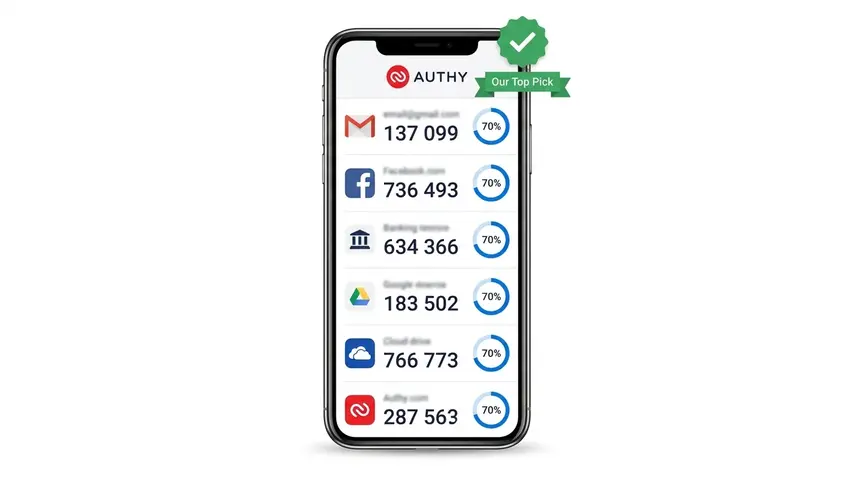
1. Authy — Best Overall for Most Users
Authy strikes the perfect balance between security and convenience. It’s the app we recommend to friends, family, and anyone who wants solid protection without complexity.
What Makes Authy Stand Out
Multi-device sync is Authy’s killer feature. Install it on your phone, tablet, and desktop — all your codes sync automatically through encrypted cloud backup. Lose your phone? Your codes are already on your other devices. No panic, no emergency recovery process, no locked-out accounts.
The backup itself uses AES-256 encryption with a password you set. Authy never has access to your unencrypted secrets. Even if their servers were completely compromised, attackers would only get encrypted blobs they can’t decrypt without your backup password.
Key Features
- Encrypted multi-device sync across iOS, Android, Windows, Mac, and Chrome extension
- Touch ID / Face ID protection — require biometric authentication before showing codes
- Offline code generation — works without any network connection
- Account icons and customization — easy visual identification of accounts
- Backup to cloud with end-to-end encryption
Pricing
Completely free. No premium tier, no limitations, no ads. Authy makes money through enterprise B2B services, not consumer apps.
Best For
Most people, especially those who switch devices occasionally or want codes accessible on multiple devices without manual setup each time.
Limitations
No manual secret export. You’re dependent on Authy’s ecosystem. If you want to switch to a different authenticator later, you’ll need to reconfigure 2FA on every service manually.
⭐ Our Top Pick: Authy wins for the majority of users who value convenience and security equally.
2. Microsoft Authenticator — Best for Microsoft Ecosystem Users
If you’re already invested in Microsoft services — Office 365, Azure, Outlook, OneDrive — Microsoft Authenticator integrates seamlessly and adds features beyond basic TOTP codes.
What Makes Microsoft Authenticator Stand Out
Passwordless sign-in for Microsoft accounts. Instead of typing a password and then entering a code, you approve a push notification on your phone. Faster, more secure, and genuinely convenient for frequent Microsoft account access.
The app also handles password autofill across apps and websites on mobile devices, functioning as a lightweight password manager alongside its authenticator role.
Key Features
- Push notification authentication for Microsoft accounts
- Cloud backup encrypted with your Microsoft account
- Password autofill integration on mobile
- Biometric unlock with fingerprint or face recognition
- Works with any TOTP service — not limited to Microsoft products
Pricing
Free. No paid tier.
Best For
Users heavily invested in Microsoft ecosystem or businesses already using Azure Active Directory.
Limitations
Backup requires a Microsoft account. If you’re trying to avoid big tech ecosystems, this isn’t ideal. Interface can feel cluttered if you have many accounts.
3. Google Authenticator — Simplest But Limited
Google Authenticator is the OG authenticator app. It popularized TOTP on mobile devices. But it’s fallen behind competitors in features.
What Makes Google Authenticator Stand Out
Simplicity. Open the app, see your codes. No account required, no cloud services, no additional features to configure. It does one thing and does it reliably.
Key Features
- No account required — works entirely offline and locally
- Clean minimalist interface — zero learning curve
- Supports standard TOTP protocol — works with every service
- Recently added cloud backup — now syncs to Google account (optional)
Pricing
Free.
Best For
Users who want maximum simplicity and are comfortable with Google’s ecosystem for backup.
Limitations
For years, Google Authenticator had no backup whatsoever. Lose your phone, lose all your codes. They finally added Google account sync in 2023, but the implementation still lags behind Authy and Microsoft Authenticator in features and flexibility.
4. 1Password — Best for Password Manager Users
1Password isn’t just an authenticator — it’s a full-featured password manager that includes TOTP generation as a built-in feature. If you already use 1Password, you don’t need a separate authenticator app.
What Makes 1Password Stand Out
Unified workflow. Store your password and TOTP secret for each account in the same vault entry. When you autofill your password, 1Password automatically copies the current TOTP code to your clipboard. One click, fully authenticated.
This integration is genuinely convenient for daily use across dozens of accounts. The security trade-off — storing both authentication factors in one place — is debatable, but 1Password’s vault encryption and zero-knowledge architecture are industry-leading.
Key Features
- Integrated TOTP generation within password manager
- One-click autofill for password + TOTP code
- Cross-platform sync — iOS, Android, Windows, Mac, Linux, browser extensions
- Watchtower security alerts — warns about breached passwords and weak 2FA
- Family and team sharing with vault organization
Pricing
$2.99/month individual, $4.99/month family (up to 5 users). Not free, but includes full password manager functionality.
Best For
Users who want a complete password + 2FA solution in one app and don’t mind paying for premium features.
Limitations
Not free. Storing passwords and 2FA codes in the same app reduces defense-in-depth — if your 1Password vault is compromised, attackers get both factors. For most threat models this is acceptable, but high-security environments may want separation.
5. Duo Mobile — Best for Enterprise and Work Accounts
Duo Mobile is designed for business environments but works perfectly well for personal use. It’s the authenticator of choice for many corporations and universities.
What Makes Duo Mobile Stand Out
Push notification authentication with contextual information. When you get a Duo push, it shows you the location, device, and application requesting access. You can approve or deny based on this context — making it harder for attackers to social engineer approvals.
Key Features
- Push notifications with context (location, device, app)
- Biometric verification before approving push requests
- Encrypted cloud backup for account restoration
- Works with standard TOTP — not limited to Duo-protected services
- Enterprise-grade security and compliance certifications
Pricing
Free for personal use. Enterprise features require Duo Security subscription (paid by your employer/university).
Best For
Users whose workplace or school already uses Duo, or anyone who wants push-based authentication with strong context awareness.
Limitations
Interface designed for enterprise use feels slightly less polished for personal account management compared to consumer-focused apps.
6. Aegis Authenticator — Best for Privacy and Open Source
Aegis is the choice for users who prioritize transparency, privacy, and control. It’s fully open source, independently audited, and gives you complete ownership of your data.
What Makes Aegis Stand Out
No cloud services. No account required. No telemetry. Everything stays on your device. You can export your vault as an encrypted file and store it wherever you want — USB drive, personal cloud storage, physical paper backup.
The source code is publicly available on GitHub. Security researchers can verify there are no backdoors, no data collection, and no unexpected behavior. For privacy-conscious users, this transparency is non-negotiable.
Key Features
- Fully open source — code is public and auditable
- Local vault encryption with AES-256
- Manual backup export — encrypted vault file you control
- No permissions required beyond camera (for QR scanning)
- No internet connection needed — works 100% offline
- Material Design interface — clean Android-native UI
Pricing
Free and open source. No premium version, no monetization.
Best For
Privacy-focused users, open source advocates, and anyone who wants complete control over their authentication data. Android only.
Limitations
Android exclusive — no iOS version. No automatic cloud backup means you’re responsible for backup management. More manual work compared to auto-syncing alternatives.
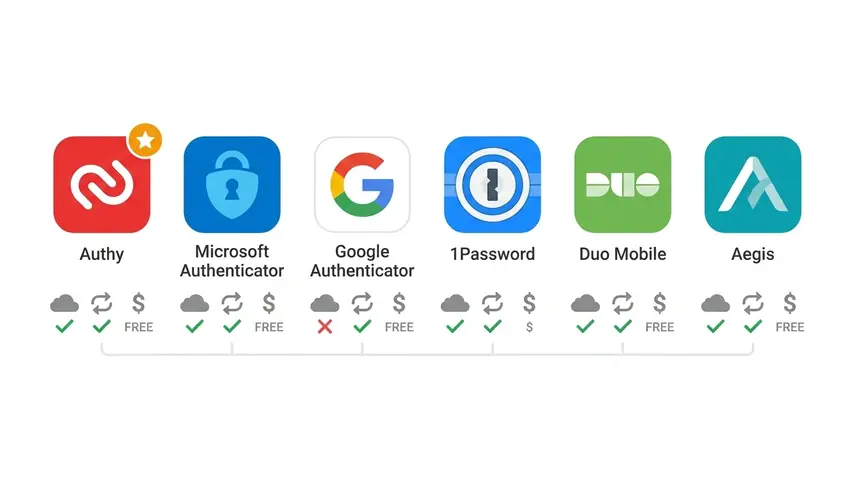
Side-by-Side Comparison
| App | Cloud Backup | Multi-Device Sync | Price | Best For |
|---|---|---|---|---|
| Authy | ✅ Encrypted | ✅ | Free | Most users |
| Microsoft Authenticator | ✅ Encrypted | ✅ | Free | Microsoft users |
| Google Authenticator | ✅ Optional | ✅ | Free | Simplicity seekers |
| 1Password | ✅ Encrypted | ✅ | $2.99/mo | Password manager users |
| Duo Mobile | ✅ Encrypted | ✅ | Free | Enterprise environments |
| Aegis | Manual export | ❌ | Free | Privacy advocates (Android) |
Testing Your Authenticator Setup
Once you’ve chosen your best two factor app and set it up, you should verify that it’s generating correct codes. If you’re a developer implementing TOTP in your own applications, or if you just want to confirm your setup works correctly, using a free TOTP generator lets you cross-verify that your app produces the expected codes given a known secret.
For regular users, the verification is simpler: after scanning a QR code during 2FA setup, the service immediately asks you to enter the current code. If it accepts it, your app is working correctly.
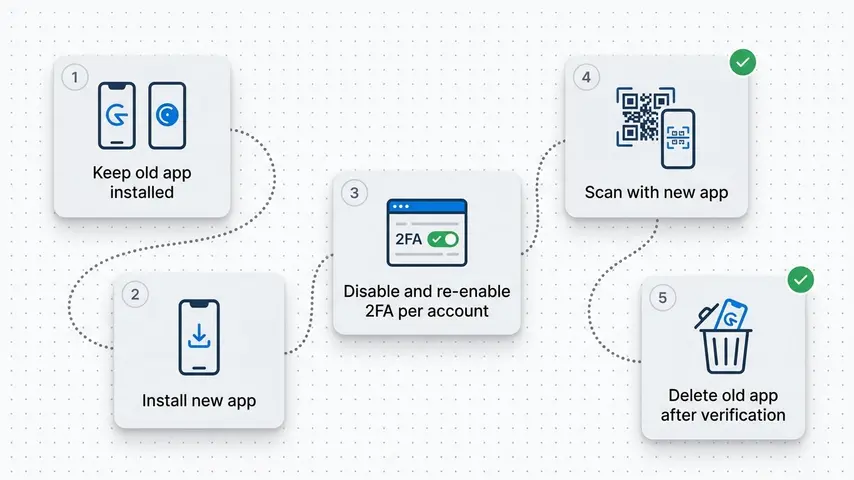
How to Switch Authenticator Apps
Decided to switch from one authenticator to another? Unfortunately, there’s no universal export/import format that works across all apps. Here’s the process:
- Keep your old app installed until migration is complete
- Install your new authenticator app on the same device
- For each account: Go to its security settings, disable 2FA, immediately re-enable 2FA, and scan the new QR code with your new app
- Verify each account works with the new app before removing the old one
- Once all accounts migrated, delete the old app
Yes, it’s tedious. No, there’s no shortcut for most apps. Budget 30-60 minutes if you have 20+ accounts protected with 2FA.
Exception: Some apps like Aegis support importing encrypted exports from other authenticators. Check documentation for your specific combination.
Common Mistakes to Avoid
Not saving backup codes. Every service that offers 2FA also provides one-time backup codes during setup. Screenshot them. Print them. Store them somewhere secure. They’re your emergency access if you lose your phone.
Using the same authenticator app for work and personal accounts. If your employer requires 2FA through a specific app (like Duo), keep personal accounts in a separate authenticator. Work devices can be remotely wiped during offboarding.
Never testing recovery procedures. Before you actually lose your device, test your backup and recovery process. Can you restore your codes? Do your backup codes work? Finding out they don’t during an emergency is too late.
Storing backup codes in your password manager. If your password manager gets compromised, the attacker shouldn’t also get your 2FA backup codes. Store them separately — physically or in a different secure location.
Frequently Asked Questions
What is the best authenticator app overall?
Authy is the best authenticator app for most users. It offers encrypted multi-device sync, works completely offline, provides cloud backup with end-to-end encryption, and is entirely free. The combination of security, convenience, and reliability makes it the top choice unless you have specific needs that favor Microsoft Authenticator (Microsoft ecosystem users), 1Password (integrated password management), or Aegis (open source privacy).
Is Google Authenticator still good in 2026?
Google Authenticator works reliably but lacks features competitors offer. It now includes Google account sync (added in 2023), which fixes its biggest historical weakness — no backup. However, it still trails Authy and Microsoft Authenticator in multi-device sync capabilities, biometric protection options, and overall user experience. It’s adequate but not the best choice unless you specifically value extreme simplicity.
Should I use the same app for all my 2FA codes?
Yes, using one authenticator app for all personal accounts is fine and actually more convenient. All authenticator apps support unlimited accounts. The exception is work accounts — keep those in a separate app (or the app your employer mandates) since work devices can be remotely wiped when you leave the company. Separating work and personal 2FA prevents losing personal account access during job transitions.
Is storing passwords and 2FA codes in 1Password secure?
1Password’s vault encryption is strong (AES-256 with zero-knowledge architecture), making this setup secure for most threat models. The convenience trade-off is that both authentication factors live in one place. If your 1Password master password is compromised, attackers get everything. For high-risk accounts (banking, primary email), consider keeping 2FA in a separate authenticator app for defense-in-depth. For most users, the convenience of integrated password + 2FA in 1Password outweighs the theoretical risk.
Do authenticator apps work without internet?
Yes, all authenticator apps work completely offline. TOTP codes are generated locally on your device using only the stored secret key and your device’s clock. No internet connection or cellular service is required. This makes authenticator apps more reliable than SMS-based 2FA, which requires cellular connectivity. You can generate codes on a plane, in a basement, or anywhere else without network access.
Can I use multiple authenticator apps at the same time?
Yes, you can scan the same QR code with multiple authenticator apps during 2FA setup. Both apps will generate identical codes since they share the same secret. This provides redundancy — if one device breaks or gets lost, you have codes on the other. However, most users find cloud-syncing authenticators like Authy or Microsoft Authenticator more convenient than manually maintaining multiple apps, since sync handles redundancy automatically.
The Bottom Line
The best authenticator apps share common traits: reliable TOTP code generation, encrypted backup, cross-device sync, and interfaces that don’t frustrate you every time you need a code.
For most people, Authy hits the sweet spot. It’s free, secure, syncs seamlessly, and just works. Microsoft Authenticator is the obvious choice if you’re already in that ecosystem. 1Password makes sense if you want unified password and 2FA management. Aegis serves privacy-focused Android users perfectly.
The worst choice? Not using two-factor authentication at all. Any best 2FA app from this list is infinitely better than password-only authentication. Pick one, spend an hour setting it up on your important accounts, and sleep better knowing your digital life has a strong second layer of defense.
Your Gmail, banking, social media, and work accounts are too valuable to protect with just a password. Choose your authenticator app today and enable 2FA everywhere that supports it. The 60 seconds it takes to scan a QR code might be the most valuable security investment you make this year.