

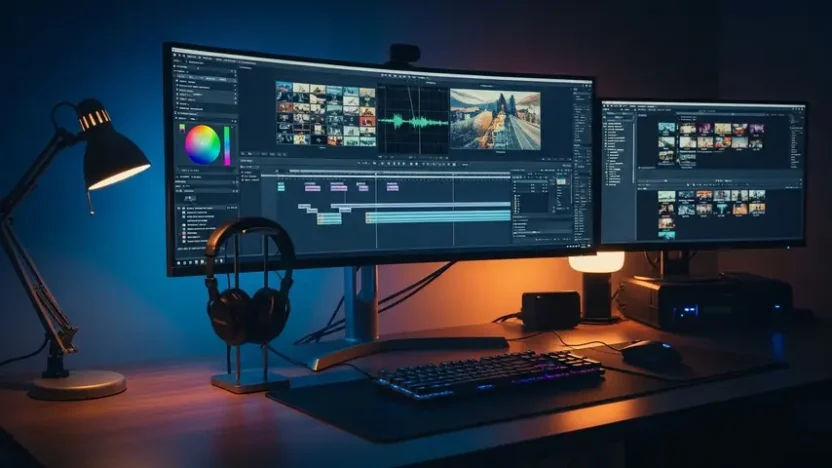
You want to edit videos on your PC without paying for software. Sounds simple enough. But the moment you start searching for video editing software for PC free, you’re hit with hundreds of options — most of which either slap a watermark on your exports, crash every ten minutes, or hide all the useful features behind a paywall you didn’t see coming.
I’ve been editing video on Windows machines for over five years. Personal projects, client work, YouTube content, freelance gigs — all on free software. Not because I’m cheap (okay, partly), but because the best free editors in 2026 have genuinely caught up to paid alternatives for most workflows.
This guide covers the seven free video editors I’ve actually used on real projects. Every recommendation comes with honest performance assessments, system requirements, and clear answers about watermarks, export quality, and limitations. No fluff. No affiliate-driven rankings. Just results.
What Matters Most in Free Video Editing Software
Before diving into specific tools, here’s what I evaluate when testing video editing Windows software — and what you should prioritize too:
- No watermark exports — If the software brands your final video, it’s not truly free. Period
- 4K support — Even if you’re editing 1080p now, you’ll want 4K capability as cameras improve
- Timeline stability — Can it handle 20+ clips without lagging, freezing, or crashing?
- Export quality — Clean rendering without compression artifacts destroying your footage
- Hardware efficiency — Does it run smoothly on mid-range PCs, or does it demand a $3,000 workstation?
- Active development — Software that hasn’t been updated in a year is falling behind rapidly
- Learning curve — Professional power means nothing if you can’t figure out the interface
7 Best Free Video Editors for PC — Tested & Ranked
1. DaVinci Resolve — The Undisputed Champion
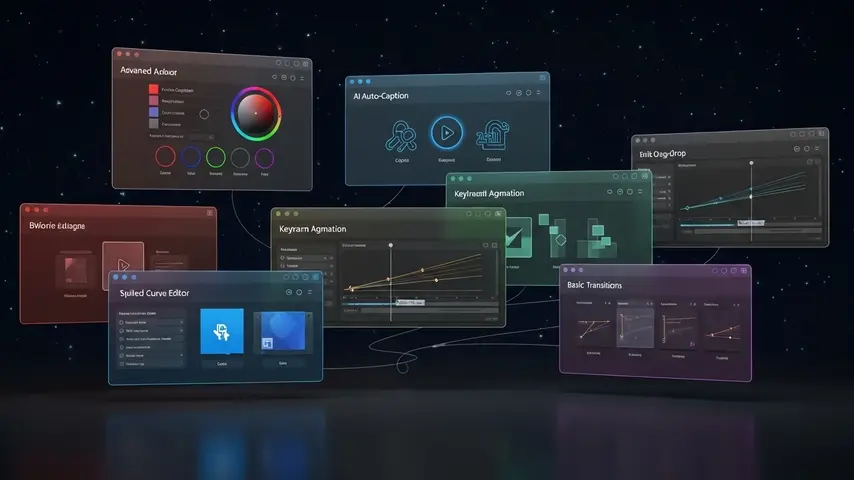
DaVinci Resolve isn’t just the best free video editor — it’s arguably better than most paid software. Blackmagic Design built it for Hollywood colorists, then made the full editing suite free. The paid Studio version exists ($295 one-time), but the free version includes everything 95% of editors will ever need.
✅ Strengths
- Industry-standard color grading tools
- Multi-track timeline with professional controls
- Fairlight audio post-production suite built-in
- Fusion VFX compositing included
- 4K export — no watermark, no limitations
- Regular updates with meaningful features
❌ Limitations
- Steep learning curve for beginners
- Demands dedicated GPU (4GB+ VRAM recommended)
- Interface feels overwhelming initially
- Heavy installation (2GB+)
Best for: Serious editors who want professional-grade software they’ll never outgrow.
2. Shotcut — The Lightweight Workhorse
Shotcut is the editor I recommend when someone says “I need something that just works on my regular PC.” It’s open-source, cross-platform, and runs surprisingly well on modest hardware. No account creation, no watermarks, no hidden paywalls — ever.
✅ Strengths
- Runs on low-spec hardware smoothly
- Supports nearly every video codec
- 100% free with no account required
- 4K export supported
- Clean, no-nonsense interface
❌ Limitations
- Interface looks dated compared to competitors
- No built-in stock media library
- Stability issues with complex 4K projects
- Limited transition and effect options
Best for: Beginners and users with older PCs who need reliable, no-frills editing.
3. CapCut Desktop — The AI-Powered Social Editor
CapCut’s desktop version evolved far beyond its TikTok origins. The AI features — auto-captions, background removal, smart color correction, and text-to-speech — save enormous amounts of editing time. It’s free, it’s fast, and it produces video editing no watermark exports at 1080p.
✅ Strengths
- Best AI auto-captions on desktop
- One-click background removal
- Massive free template library
- Beginner-friendly interface
- 1080p export without watermark
❌ Limitations
- 4K export requires Pro subscription
- Some premium effects locked behind paywall
- Limited multi-track capabilities
- Heavy on system resources during export
Best for: Social media creators and anyone who wants AI to handle the tedious editing tasks.
4. Kdenlive — The Open-Source Powerhouse
Kdenlive started as a Linux project but now runs excellently on Windows. It offers multi-track editing, keyframe animations, and a robust effects library — all completely free and open-source.
✅ Strengths
- Powerful multi-track timeline
- Excellent keyframe animation controls
- Active open-source community
- 4K export with no restrictions
- Proxy editing for smoother playback
❌ Limitations
- Occasional Windows stability issues
- Rendering speed slower than competitors
- Smaller tutorial ecosystem
- Interface can feel cluttered
Best for: Intermediate editors who want professional features without any cost or restrictions.
5. Microsoft Clipchamp — Zero-Install Convenience
Already installed on Windows 11. No downloads. No setup. Just open and start editing. For quick projects and simple edits, Clipchamp’s convenience is hard to beat.
✅ Strengths
- Pre-installed on Windows 11
- Modern beginner-friendly interface
- Built-in stock library and templates
- Auto-captions and text-to-speech
- 1080p export without watermark
❌ Limitations
- Limited to 1080p on free plan
- Advanced features require Microsoft 365
- Not suitable for complex multi-track projects
- Browser-based processing can feel slow
Best for: Windows 11 users who need quick, hassle-free editing without installing anything.
6. VN Video Editor — The Hidden Gem
VN flies under the radar consistently, which is a shame because it’s genuinely excellent. Multi-track timeline, keyframe animation, speed curves, 4K export — all free with no watermarks and no subscription. Ever.
✅ Strengths
- Completely free — no watermark, no subscription
- Multi-track timeline with speed curves
- Keyframe animation support
- 4K export at no cost
- Cross-platform (PC + mobile)
❌ Limitations
- Limited effects library compared to DaVinci
- No advanced color grading tools
- Smaller community and tutorial base
- Desktop version less polished than mobile
Best for: Creators who want maximum features at zero cost with no compromises on export quality.
7. OpenShot — The Simplest Entry Point
OpenShot exists for people who have never edited a video in their life and want the gentlest possible introduction. The interface is clean, the learning curve is minimal, and basic projects come together quickly.
✅ Strengths
- Easiest interface among all free editors
- Drag-and-drop simplicity
- Decent title and transition library
- Cross-platform support
- No watermark on exports
❌ Limitations
- Performance issues with larger files
- Very limited effects compared to alternatives
- Crash-prone on complex timelines
- No AI features whatsoever
Best for: Absolute beginners who prioritize simplicity above everything else.
Quick Comparison Table
| Software | Best Feature | 4K Export | No Watermark | AI Features | Min. Hardware |
|---|---|---|---|---|---|
| DaVinci Resolve | Pro color grading | ✅ | ✅ | Limited | High |
| Shotcut | Lightweight performance | ✅ | ✅ | ❌ | Low |
| CapCut Desktop | AI auto-captions | Pro only | ✅ (1080p) | ⭐⭐⭐⭐⭐ | Medium |
| Kdenlive | Keyframe animation | ✅ | ✅ | ❌ | Medium |
| Clipchamp | Pre-installed Windows | Pro only | ✅ (1080p) | ⭐⭐⭐ | Low |
| VN Editor | Speed curves free | ✅ | ✅ | ⭐⭐ | Medium |
| OpenShot | Easiest interface | ✅ | ✅ | ❌ | Low |
Video Editing Best Laptop — Hardware Recommendations
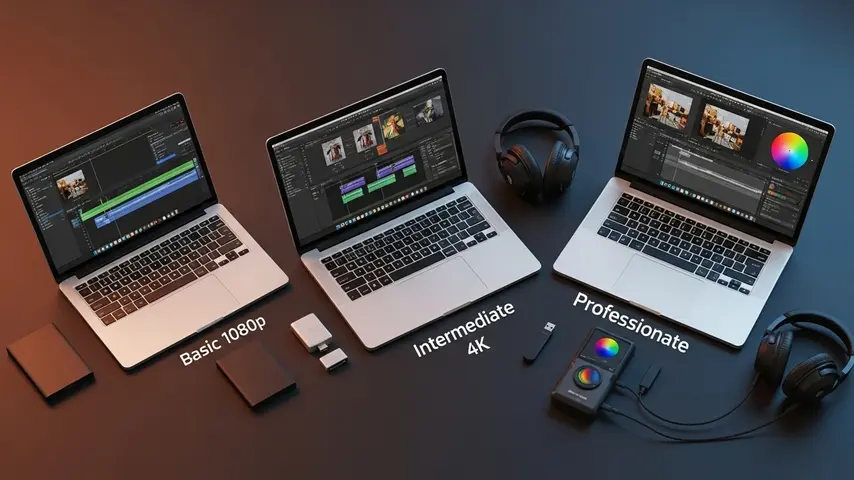
Free software saves you money on subscriptions — but your hardware still matters. Here’s what you need for smooth video editing Windows performance at different levels:
| Editing Level | Processor | RAM | GPU | Storage | Best Software Match |
|---|---|---|---|---|---|
| Basic (1080p) | Intel i5 / Ryzen 5 | 8GB | Integrated OK | 256GB SSD | Shotcut, OpenShot, Clipchamp |
| Intermediate (1080p-4K) | Intel i7 / Ryzen 7 | 16GB | GTX 1660 / RTX 3050 | 512GB SSD | CapCut, Kdenlive, VN Editor |
| Professional (4K+) | Intel i9 / Ryzen 9 | 32GB+ | RTX 3060+ / RTX 4060+ | 1TB+ NVMe SSD | DaVinci Resolve |
Key insight: The single biggest performance upgrade for video editing isn’t the processor or GPU — it’s switching from a hard drive (HDD) to a solid-state drive (SSD). If your PC has an HDD, upgrading to even a basic SSD will transform your editing experience more than any other hardware change.
Video editing is one of many skills that translates powerfully into remote career opportunities. If you’re building editing skills with these free tools, our guide on the best jobs for remote work covers how video editing, content creation, and digital media skills are among the highest-demand remote job categories in 2026.
Video Editing No Watermark — The Complete Free List
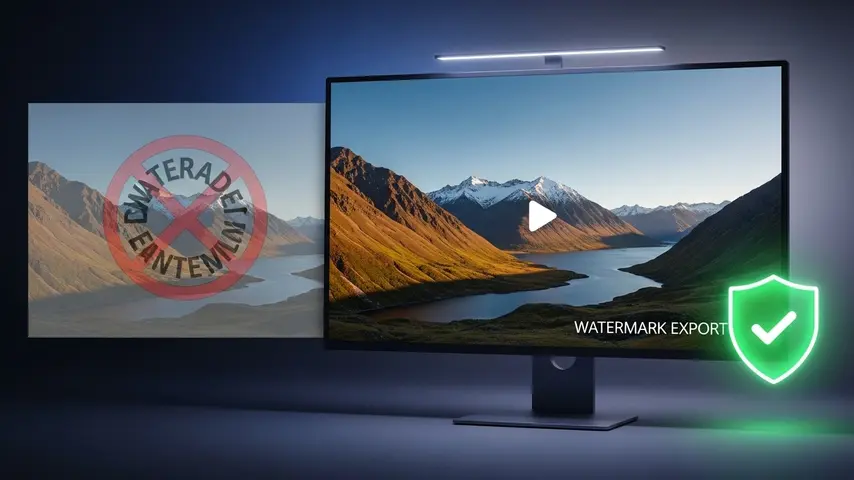
Since watermark-free export is the number one concern for anyone searching for free software, here’s the definitive video editing no watermark confirmation for every editor reviewed:
- ✅ DaVinci Resolve — No watermark at any resolution including 4K
- ✅ Shotcut — No watermark, no restrictions, fully open-source
- ✅ CapCut Desktop — No watermark at 1080p (4K requires Pro)
- ✅ Kdenlive — No watermark, no restrictions, fully open-source
- ✅ Clipchamp — No watermark at 1080p (4K requires Microsoft 365)
- ✅ VN Video Editor — No watermark at any resolution including 4K
- ✅ OpenShot — No watermark, no restrictions, fully open-source
Every editor on this list exports clean, watermark-free video. If you encounter any software claiming to be “free” but stamping its logo on your exports — close it, uninstall it, and pick something from this list instead.
AI-powered content creation tools are evolving alongside video editors. If you’re creating written content to complement your videos — blog posts, scripts, descriptions — understanding how AI detection works helps ensure your content maintains authenticity. Our guide on the best AI detectors covers how to verify content quality across your entire creative workflow.
How to Choose Your Ideal Free Editor
What kind of content do you create?
- YouTube long-form → DaVinci Resolve or VN Editor
- TikTok / Reels / Shorts → CapCut Desktop
- Professional client work → DaVinci Resolve
- Casual personal videos → Clipchamp or OpenShot
- Motion graphics / animations → Kdenlive
How powerful is your PC?
- Older / budget PC → Shotcut or OpenShot
- Mid-range PC → CapCut, Kdenlive, or VN Editor
- High-performance PC → DaVinci Resolve
How important are AI features?
- Essential → CapCut Desktop (best free AI features)
- Nice to have → Clipchamp (basic AI)
- Don’t need them → DaVinci Resolve, Shotcut, Kdenlive, VN Editor
The Bottom Line
The video editing software for PC free landscape in 2026 is genuinely impressive. You no longer need to spend hundreds of dollars on software subscriptions to produce professional-quality video content. DaVinci Resolve alone proves that the most powerful editor available costs absolutely nothing.
Start with the editor that matches your skill level and hardware. If you’re a beginner with a modest PC, Shotcut or OpenShot gets you editing within minutes. If you want AI assistance, CapCut Desktop delivers features that paid software charges for. And if you’re ready to learn a tool you’ll use for years, DaVinci Resolve is the answer — today, tomorrow, and for the foreseeable future.
The software is free. Your creativity is the investment. Open one of these editors, import your footage, and start building something worth watching.
Frequently Asked Questions
What is the best video editing software for PC free in 2026?
DaVinci Resolve is the best free video editing software for PC in 2026. It offers professional-grade multi-track editing, industry-standard color grading, audio post-production, and VFX compositing — all completely free with no watermarks. For users who need something lighter and more beginner-friendly, VN Video Editor and Shotcut are excellent alternatives that also export without watermarks at 4K resolution.
Which free video editors have no watermark?
All seven editors reviewed in this guide export without watermarks: DaVinci Resolve, Shotcut, CapCut Desktop (1080p), Kdenlive, Clipchamp (1080p), VN Video Editor, and OpenShot. The open-source options — Shotcut, Kdenlive, and OpenShot — have zero restrictions at any resolution. DaVinci Resolve and VN Editor also provide completely unrestricted 4K exports at no cost.
What is the best laptop for video editing on Windows?
For basic 1080p editing, any laptop with an Intel i5/Ryzen 5 processor, 8GB RAM, and an SSD works well with Shotcut or Clipchamp. For intermediate 4K editing, look for Intel i7/Ryzen 7, 16GB RAM, and a dedicated GPU like GTX 1660 or RTX 3050. For professional DaVinci Resolve work, aim for Intel i9/Ryzen 9, 32GB+ RAM, and an RTX 3060 or newer GPU with a 1TB NVMe SSD.
Is CapCut Desktop really free for PC?
Yes — CapCut Desktop is genuinely free to download and use on PC. It exports at 1080p without watermarks, includes AI-powered auto-captions, background removal, and a massive template library at no cost. Some premium effects and 4K export require a Pro subscription, but the free tier is highly capable for most social media and YouTube content creation workflows.
Can free video editing software handle professional projects?
Absolutely — DaVinci Resolve is used in professional film, television, and commercial production worldwide. Hollywood colorists grade feature films with it. The free version includes the same editing, color grading, audio, and VFX tools used in professional studios. The only features reserved for the paid Studio version are specific hardware acceleration codecs and collaborative workflow tools that individual editors rarely need.


Amazing! This blog looks just like my old one! It’s on a totally different subject but it has pretty much the same page layout and design. Excellent choice of colors!